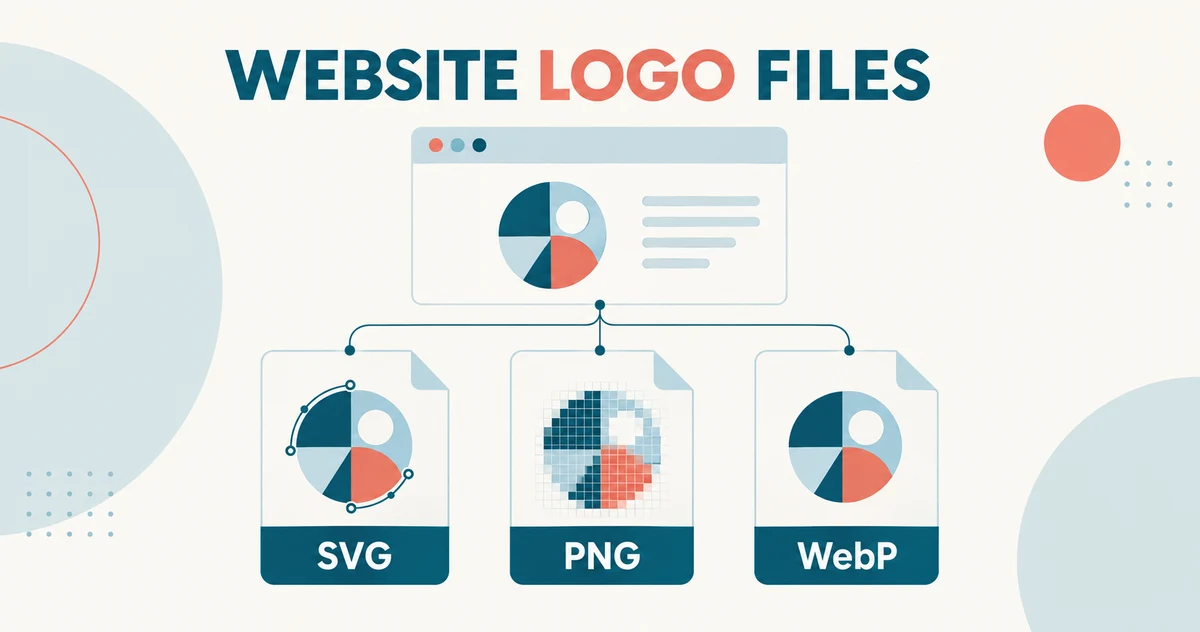

SVG is usually the best logo format for a website when the design is built from vector shapes and your website supports it. It stays sharp as it scales. Choose a transparent PNG when SVG uploads are unavailable, and consider lossless WebP when you need a smaller raster file without changing the image’s pixels.
The right choice depends on the artwork, the upload field, and the size visitors actually see. A crisp logo should fit a phone’s navigation bar, sit cleanly on its background, and load without pushing the page around. This guide helps you choose and prepare that file—not redesign your entire brand.
Match the File to Its Place on the Page
For a conventional wordmark or simple symbol, start with SVG. For textured artwork or a website builder that accepts only raster images, compare PNG with lossless WebP. JPEG is a poor default for a standalone logo because it lacks transparency and its lossy compression can leave marks around lettering.
| File | Best website role | Main trade-off |
|---|---|---|
| SVG | Vector logos in headers, footers, and responsive navigation | Needs supported uploads and properly prepared, trusted artwork |
| PNG | Transparent fallback and precise raster graphics | Needs enough pixels for the display size |
| Lossless WebP | Transparent raster delivery where supported | Compare the actual export; savings are not guaranteed |
| JPEG / JPG | Photographs that include a logo, such as a storefront photo | No transparent background; compression can affect hard edges |
| AI, EPS, PDF | Source files or production handoff | Keep these separately; export a suitable image for the site header |
MDN’s browser image-format reference documents the main web formats and their capabilities. Browser support and permission to upload a file to your particular website are different things.
If the terms “wordmark” and “symbol” are unfamiliar, our explanation of the visual components that identify a business provides the background without getting into export settings.
Why SVG Usually Wins in a Website Header
SVG can describe artwork using paths, shapes, and text instead of a fixed grid of pixels. A genuinely vector logo can therefore appear at different sizes without the pixelation caused by enlarging a small bitmap. That suits a header that changes between laptop and phone layouts.
However, an SVG extension is not proof that every part of the file is vector. The W3C description of SVG’s graphic objects includes images as well as vector shapes. An SVG containing an embedded low-resolution photograph will not magically sharpen that photograph.
Ask for an export with a correctly fitted canvas, reliable lettering, and no unnecessary hidden artwork. Keep an editable original separately. The website copy should reproduce the approved design accurately; it does not need every working layer from the designer’s project.
Also check the design itself at navigation-bar size. A scalable file cannot make a tiny tagline readable or prevent an intricate emblem from looking crowded. Sometimes the best web version is a simplified companion mark approved alongside the full logo.
When PNG or WebP Makes More Sense
A transparent PNG is a dependable fallback
PNG uses lossless compression and supports transparent or partly transparent areas. This makes it useful when the logo needs to sit over a colored header without a white rectangle. Adobe’s overview of transparent PNG artwork explains these properties.
Lossless does not mean infinitely scalable. Export from a good source at the required dimensions, and avoid taking a screenshot of the logo. A large PNG made from a small, blurry original still contains the same missing detail.
Lossless WebP is worth comparing with the PNG
WebP supports transparency and both lossy and lossless compression. For a logo with delicate lettering or hard color boundaries, lossless WebP is a sensible version to test against PNG.
Google reports that lossless WebP images are 26% smaller than PNGs in its published comparison. That is a format comparison, not a promise that your logo will shrink by 26%. Export the same artwork at the same dimensions, compare file sizes, and inspect both on the page.
Do not automatically replace a clean, lightweight SVG with WebP. WebP remains a raster format; it does not inherit vector scalability. Equally, do not keep a complicated SVG just because “vector is always smaller.” The result depends on the artwork and export.
Keep JPEG for the photograph, not the transparent mark
A photograph of your branded packaging may work well as JPEG or another photographic format. The separate logo in your navigation has different requirements. Uploading a white-background JPG into a dark header is usually the wrong starting point.
AVIF can also be useful for website imagery, but a small logo is not a reason to adopt another format without testing your platform and output. A reliable SVG plus a transparent raster alternative covers many everyday logo handoffs.
Set the Display Size Before Choosing Pixel Dimensions
There is no universal “best logo size” for every website. First decide how wide and tall the mark should appear in the layout. Then prepare enough image pixels for the target screen density.
Worked example: a raster logo displayed at 180 × 60 CSS pixels needs a 360 × 120-pixel source to provide two image pixels per CSS pixel on a 2× display. A 3× version would be 540 × 180 pixels. These are calculated examples, not mandatory dimensions for every header.
| Planned display | 1× export | 2× export |
|---|---|---|
| Compact: 120 × 40 | 120 × 40 px | 240 × 80 px |
| Standard example: 180 × 60 | 180 × 60 px | 360 × 120 px |
| Wide example: 240 × 80 | 240 × 80 px | 480 × 160 px |
All examples keep a 3:1 ratio. Preserve your own logo’s proportions rather than stretching it to fit these numbers. A developer can provide multiple raster sizes through responsive image markup; MDN’s guide to resolution switching shows how browsers choose suitable files.
Reserve the correct space before the image loads. Explicit width and height attributes, or an appropriate aspect ratio, help prevent content from shifting. This is one of the fixes in web.dev’s guidance on image-related layout movement.
For a vector SVG, focus on its visible dimensions and proportions rather than making separate 1× and 2× bitmap exports. On mobile, check that the logo leaves room for the menu button and never overlaps it.
Fix the File Problem Before Replacing the Design
- The logo looks blurry: check the original, the file actually served by the site, and whether it is being enlarged. A builder may be displaying a thumbnail rather than your full upload.
- A white box appears: the background may be baked into the image. Export genuine transparency from the source; changing the filename to .png will not remove the background.
- The logo seems too small despite a wide image: inspect empty margins inside the file. Remove accidental padding while retaining intentional brand clear space.
- The lettering changes in an SVG: ask the designer to check font dependencies and the web export. Outlined lettering can avoid a dependency on the viewer having the font installed.
- The logo vanishes on a dark header: supply an approved light-colored version and test it on the actual background.
- The upload field rejects SVG: check that field’s supported formats. Use a transparent raster export while the developer evaluates a safe SVG workflow.
Do not bypass upload validation just to get an SVG accepted. SVG can contain active content. MDN explains that SVG security restrictions depend on how the file is embedded. A developer should validate or sanitize untrusted files and choose an appropriate implementation.
If the only source is a small JPG, discuss rebuilding a low-resolution mark for digital use. Renaming or wrapping that bitmap in an SVG container does not reconstruct clean vector paths.
Treat the Browser-Tab Icon as a Separate Export
A favicon occupies a tiny square. A long business name that works across a header may become unreadable there, so use an approved compact symbol or initial-based variation.
For Google Search, its current documentation calls for a square favicon at least 8 × 8 pixels and recommends larger than 48 × 48 pixels. PNG is among the listed supported formats. Follow Google’s current favicon eligibility requirements, keep the URL stable, and allow crawling. Meeting those requirements does not guarantee display.
WordPress’s Site Icon workflow asks for a square image of at least 512 × 512 pixels. That is an upload requirement for the platform, not a recommendation to display a 512-pixel icon in a browser tab. Its Site Icon setup instructions explain the distinction.
Keep the favicon, website header logo, and social-sharing image as separate deliverables. They serve different spaces; one export should not be stretched into all three.
Request a Small, Organized Website Logo Kit
Before your site goes live, agree on what will be delivered and who will upload it. A practical handoff can include:
- An optimized SVG of the approved vector mark, where supported.
- A transparent PNG fallback at agreed display sizes and screen densities.
- A tested lossless WebP alternative if it offers a useful saving.
- Light- and dark-background versions, clearly labeled.
- A compact square icon prepared for the website’s favicon workflow.
- The editable design master, kept separately from deployment files.
Ask which deliverables your selected package includes rather than assuming every file type comes with every order. For a new project, plan a custom logo with its website applications in mind. If the design is still being developed, use our guide to taking an initial concept through final artwork before requesting exports.
Run This Five-Minute Check on the Live Header
- Open the site on a phone and a laptop. Confirm that the logo and menu both fit.
- Look at small lettering and curved edges at normal viewing size.
- Check light and dark backgrounds for white boxes, halos, or disappearing details.
- Reload the page and watch for the header changing height as the logo arrives.
- Check the tab icon and make sure the logo link takes visitors to the intended home page.
Choose the smallest tested file that preserves the approved appearance and works reliably in your platform. SVG is the usual starting point for a vector logo; PNG and lossless WebP solve different delivery needs. Good preparation matters more than picking an extension because it is fashionable.
Make Your Logo Ready for Its First Page Load
Tell LogoVention which website platform you use, where the mark will appear, and which files you already have. We can discuss whether you need a new design, refinement, or a better set of exports before you choose a package.
Prepared by LogoVention. Technical references checked September 16, 2026. Pixel dimensions above are illustrative calculations. The cover is a conceptual illustration, not a measured image-quality test or client design.